Upload a customer list (CSV)
Have a list of your recent customers in Excel or your checkout software? Upload it, and Citypicked asks them all at once or spread out, without you typing each one.
- Step 1:
File
Go to Requests and click “Upload a list (CSV)”. Choose an Excel or CSV file, one row per customer, with name and mobile number or email. Up to 10,000 rows and 5 MB. “Download template” gives you a file that fits.
- Step 2:
Columns
Citypicked usually finds name, phone and email by itself. Quickly check that each column is right. Set columns you don't need to “Ignore”.
- Step 3:
Check
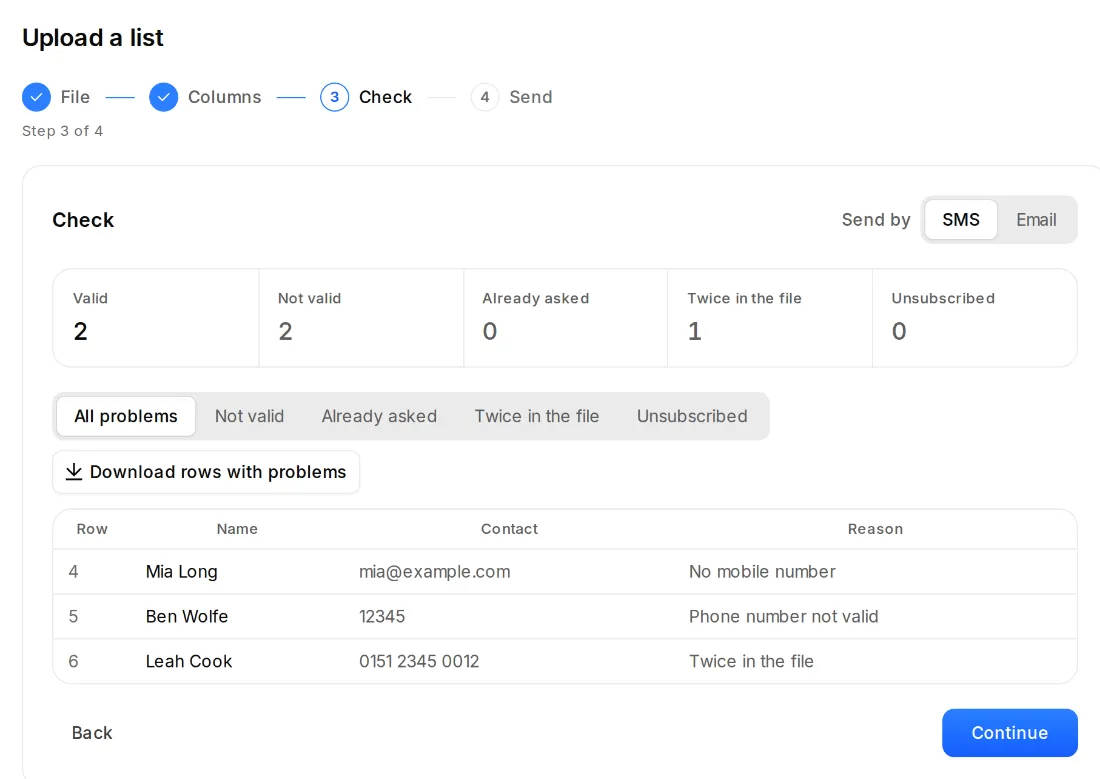
Citypicked shows how many rows are valid and which are not valid, already asked, twice in the file or unsubscribed, with the reason. Under “Send by”, choose SMS or email.
- Step 4:
Send
Under “When to send?”, pick “All at once” or “Spread out”: a set number of requests per hour within your sending hours. Check the permission box and click “Send now”, or “Schedule” when the list is spread out or waits for your sending hours.
Good to know
- If the file comes from Numbers or Google Sheets, save it as an Excel file.
- Nobody is asked twice: anyone who got a request recently is left out, even if you upload the list twice.
- The list shows under Sent as “List with … contacts”. There you see how many have gone out, and “Cancel the rest” stops the rest.
- You send WhatsApp messages one by one. For lists, choose SMS or email.