Automatic after every appointment
After a long day nobody thinks of review requests anymore. With the automation link your booking or checkout system sends every request by itself, without you typing anything.
- Step 1:
Create the link
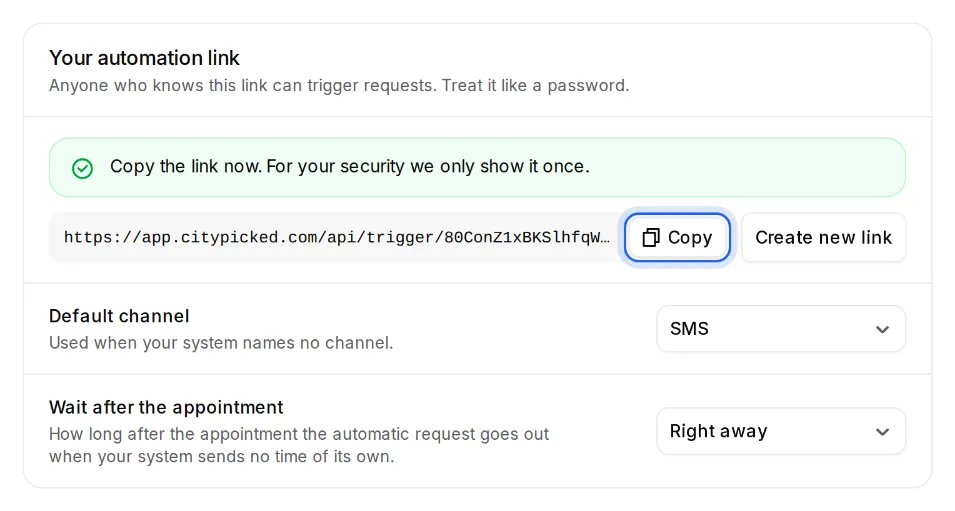
Open Settings, Sending. At “Automatic after every appointment”, click “Set up” and then “Create link”. Copy the link right away: for your security Citypicked shows it only once.
- Step 2:
Set the defaults
Choose the “Default channel” (SMS or email) and the “Wait after the appointment”: from “Right away” through 15 minutes to “1 day”. Both apply when your system sends nothing else.
- Step 3:
Connect your system
Many checkout and booking systems, as well as Zapier, Make and n8n, can send name and mobile number (or email) to this link after an appointment. There is a guide with an example for each tool here. Or you give the link to the company behind your software and they set it up once. Ask them for a “webhook”.
- Step 4:
Check what arrives
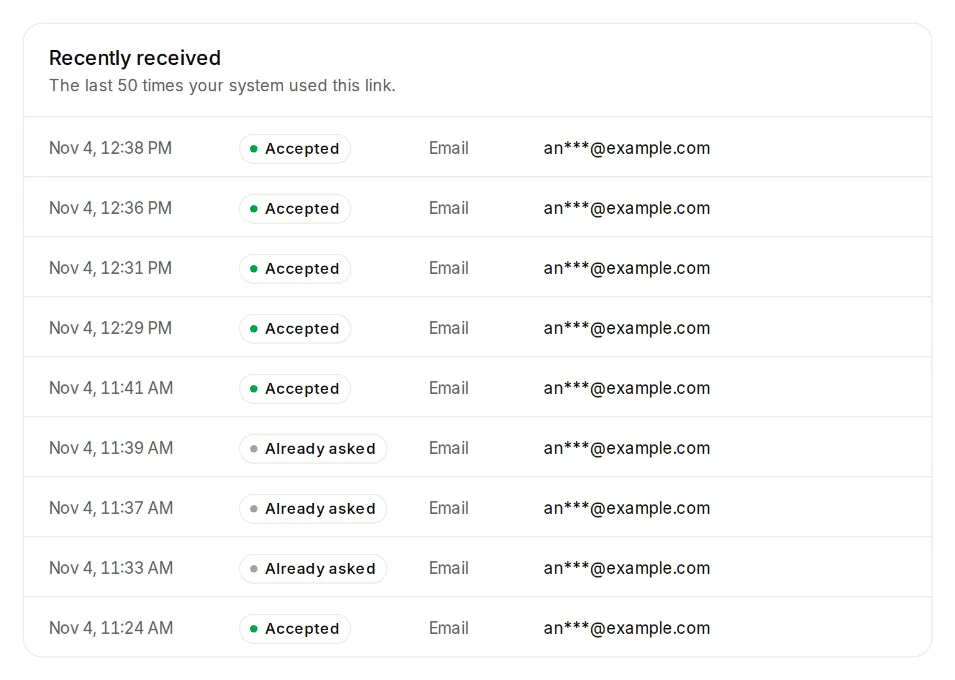
Under “Recently received” you see the last 50 calls with time, result, channel and contact. “Accepted” means the request goes out.
Good to know
- Automation is part of Pro and Business.
- The link belongs to one location. With several locations, each one gets its own.
- Automatic requests keep to your sending hours and to “Don't ask twice”, like all others.
- Your system can also send the channel: the value sms or email in the field channel.