Connect Google Calendar to Citypicked
If you keep your customer appointments in Google Calendar, a review request goes out by itself after every appointment. The connection runs through Zapier: when an appointment ends, Zapier sends the contact details from the appointment to your automation link.
- Step 1:
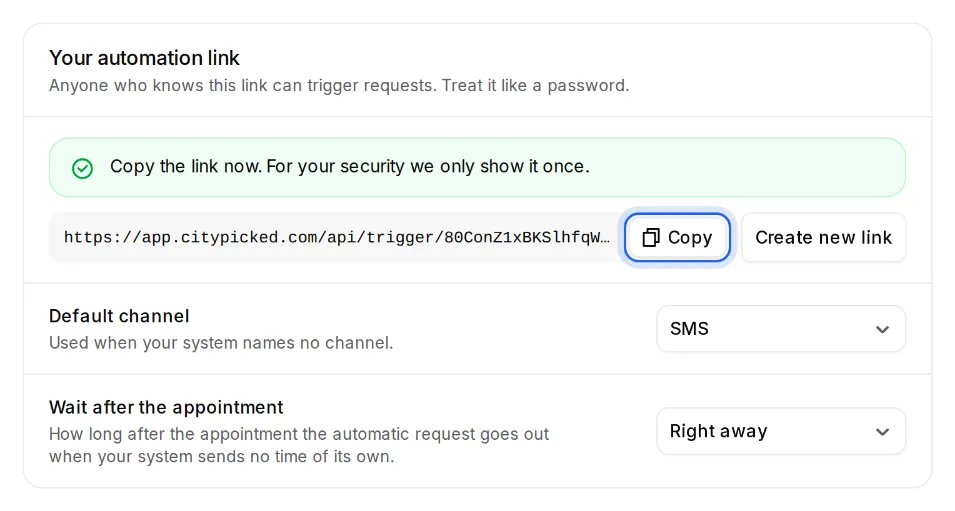
In Citypicked, open Settings, Sending, “Automatic after every appointment” and click “Set up”. Create your automation link there and copy it right away: Citypicked shows it only once.
- Step 2:
Put the contact details into your appointments so Zapier finds them: the customer's email address as a guest, or only their mobile number in the description. You can write the name in the title.
- Step 3:
Create a new Zap in Zapier. Trigger: Google Calendar with the event “Event Ended”, so a finished appointment. Pick the calendar with your customer appointments.
- Step 4:
Add the action “Webhooks by Zapier” with the event “POST”. Paste your automation link into “URL” and set “Payload Type” to “json”.
- Step 5:
Under “Data”, add these rows: name with the appointment's title and email with the guest's email. If the mobile number is in the description, map the description to phone instead.
- Step 6:
Test the Zap with a short appointment for yourself, then switch it on. Under “Recently received” Citypicked shows everything your system sent, with its result, so you see right away whether everything arrives.