Sending times and delay
Nobody likes a message at midnight. Here is how to set when requests go out, whether on Sundays too, and how long before a customer can get a second one.
- Step 1:
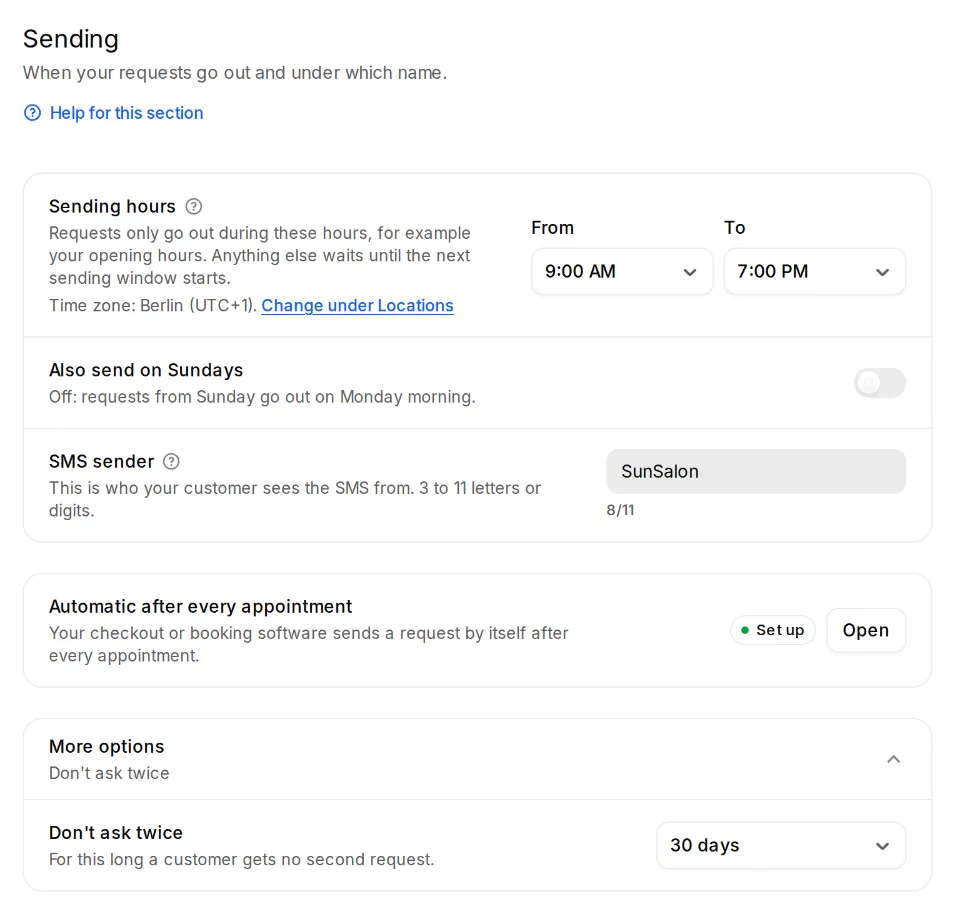
Open Settings, Sending. Under “Sending hours”, pick “From” and “To”, by default 9:00 AM to 7:00 PM. Your location's local time counts: its time zone is under Settings, Locations.
- Step 2:
“Also send on Sundays” is off until you switch it on. While it's off, Sunday requests go out on Monday morning.
- Step 3:
Under “More options”, “Don't ask twice” sets how long a customer gets no second request after one: 7, 14, 30, 60 or 90 days, 30 by default.
How it works out
A request you send outside the sending hours waits until they begin again. If you send it at 5:05 AM, it goes out at 9:00 AM the same morning. If you send it at 8:00 PM, it goes out at 9:00 AM the next morning.
The sending hours apply to reminders too. Overnight hours aren't possible: no requests go out at night.
Whether a request goes out right away or later you choose when sending, under “When”. Automatic requests after an appointment wait as long as you set at the automation link under “Wait after the appointment”.