Connect Shopify Flow to Citypicked
With Shopify Flow every customer gets a review request by itself after their order ships. The “Send HTTP request” action sends name, mobile number and email from the order to your automation link.
- Step 1:
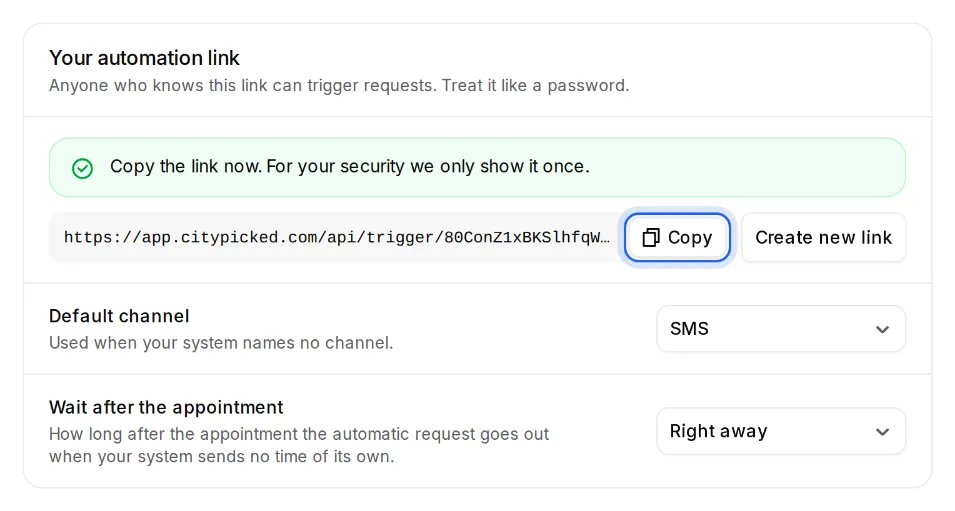
In Citypicked, open Settings, Sending, “Automatic after every appointment” and click “Set up”. Create your automation link there and copy it right away: Citypicked shows it only once.
- Step 2:
Open the Flow app in Shopify and create a new workflow. Choose “Order fulfilled” as the trigger, so a shipped order.
- Step 3:
Add the “Send HTTP request” action. Set the method to “POST”, paste your automation link into “URL” and add the header “Content-Type” with the value “application/json”.
- Step 4:
Paste the example below as the body. Shopify fills in the values in the double curly braces for every order.
- Step 5:
With delay_minutes you choose how long Citypicked waits: 4320 minutes are 3 days, by then the parcel has usually arrived. 7 days is the most.
- Step 6:
If the order has both a mobile number and an email, Citypicked uses your link's default channel. If one is missing, Citypicked uses the other.
- Step 7:
Switch the workflow on. Under “Recently received” Citypicked shows everything your system sent, with its result, so you see right away whether everything arrives.