Connect Make to Citypicked
In Make you build workflows from modules. After an appointment, an invoice or a job, the “HTTP” module sends your customer's name and mobile number (or email) to your automation link, and Citypicked sends the request.
- Step 1:
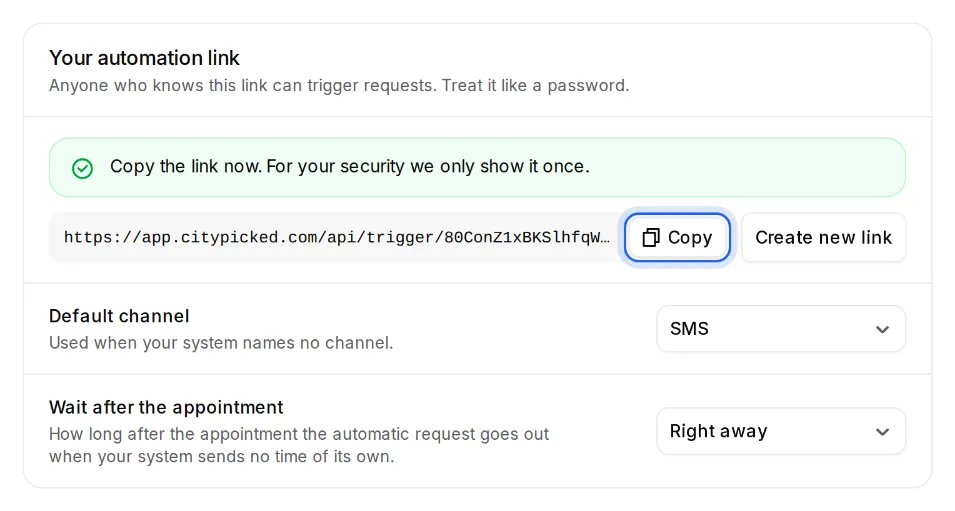
In Citypicked, open Settings, Sending, “Automatic after every appointment” and click “Set up”. Create your automation link there and copy it right away: Citypicked shows it only once.
- Step 2:
Create a new scenario in Make. The first module is the app your customer data comes from, for example your calendar or your checkout system.
- Step 3:
Then add the “HTTP” module with “Make a request”. Paste your automation link into “URL” and set the method to “POST”.
- Step 4:
Choose JSON (application/json) as the content and paste the example below. Replace the sample values with the fields from your first module: click into the text and pick the field from the list.
- Step 5:
Run the scenario once with “Run once”. The test sends a real request, so best use your own number. Then switch the scenario on.
- Step 6:
Under “Recently received” Citypicked shows everything your system sent, with its result, so you see right away whether everything arrives.