Run several locations
Two branches, a practice at two addresses? Each location gets its own review page, its own messages and its own numbers, all in one account.
- Step 1:
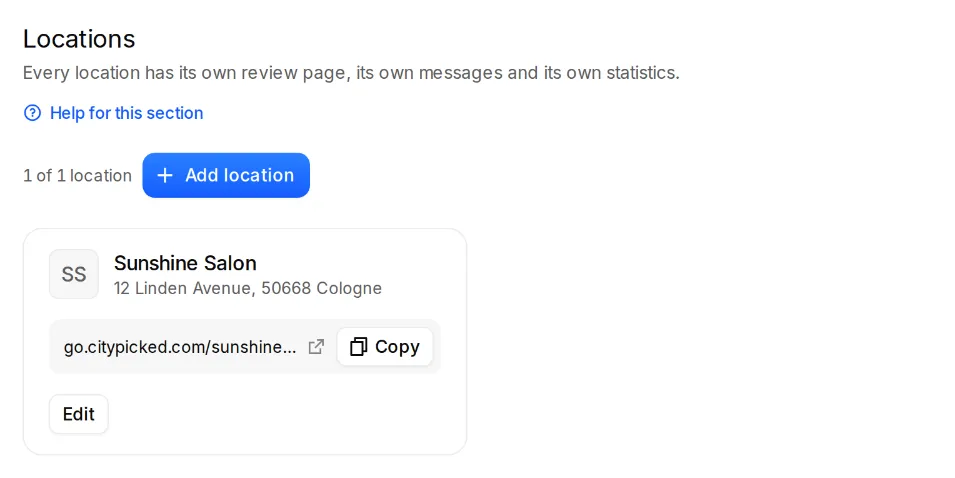
Open Settings, Locations and click “Add location”. How many locations your plan includes is shown at the top.
- Step 2:
Enter the name and address. Under “Time zone, phone, website” you set the time zone; the sending hours follow it.
- Step 3:
With “Copy settings from” you copy messages, sending times, notifications and the review page texts from another location. You add review sites afterwards.
- Step 4:
Click “Create location”. At the top of the app you switch between locations. Overview, Requests, Review page, Feedback and Analytics then show only the chosen one.
Good to know
- Basic and Pro include 1 location, Business 3. You add more locations under Settings, Plan & credits.
- An archived location takes no more reviews, its page says it isn't active right now, and no more requests go out. All data is kept, and you can restore it anytime.
- The last active location can't be archived.
- New feedback at another location still counts in the number next to Feedback.