Put up your QR code
Many customers are right in front of you, but you don't have their number. A QR code on the counter, a table or the receipt takes them to your review page with one scan.
- Step 1:
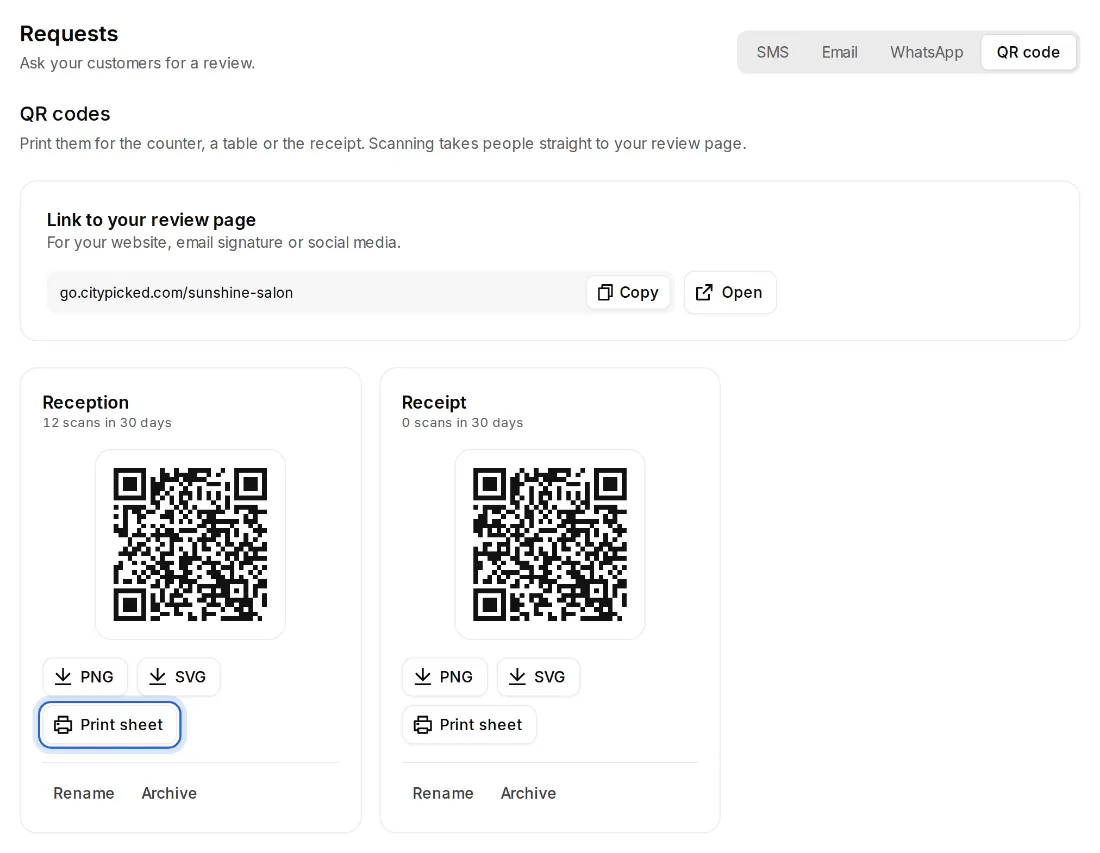
Go to Requests and open the QR code tab at the top. Your first code is already there.
- Step 2:
Download it as PNG or SVG, or open the “Print sheet”. There you pick table card, poster, sticker or business card and click “Download PDF” or “Print”.
- Step 3:
Put it where customers have a moment: at the checkout, on tables, in the waiting room or on the receipt.
- Step 4:
You can create one code per place: under “New QR code”, enter a label, for example “Reception” or “Table 1”, and click “Create QR code”.
Good to know
- Each code shows how often it was scanned in the last 30 days. Under “QR scans by code” in Analytics you see which works best.
- An archived code still leads to your page but is no longer counted. So you don't have to throw away anything you printed.
- At the top is the link to your review page, to copy for your website, email signature or social media.
- Only owners and managers can create or change QR codes.