The Google link goes to the wrong place
Your customers end up at another business, in Google search or on an error page instead of the review window? Then your Google link is off. Here is how to fix it.
- Step 1:
Open Google Maps and find your business. Make sure it really is your listing: name, address and photos.
- Step 2:
Tap “Share” and then “Copy link”.
- Step 3:
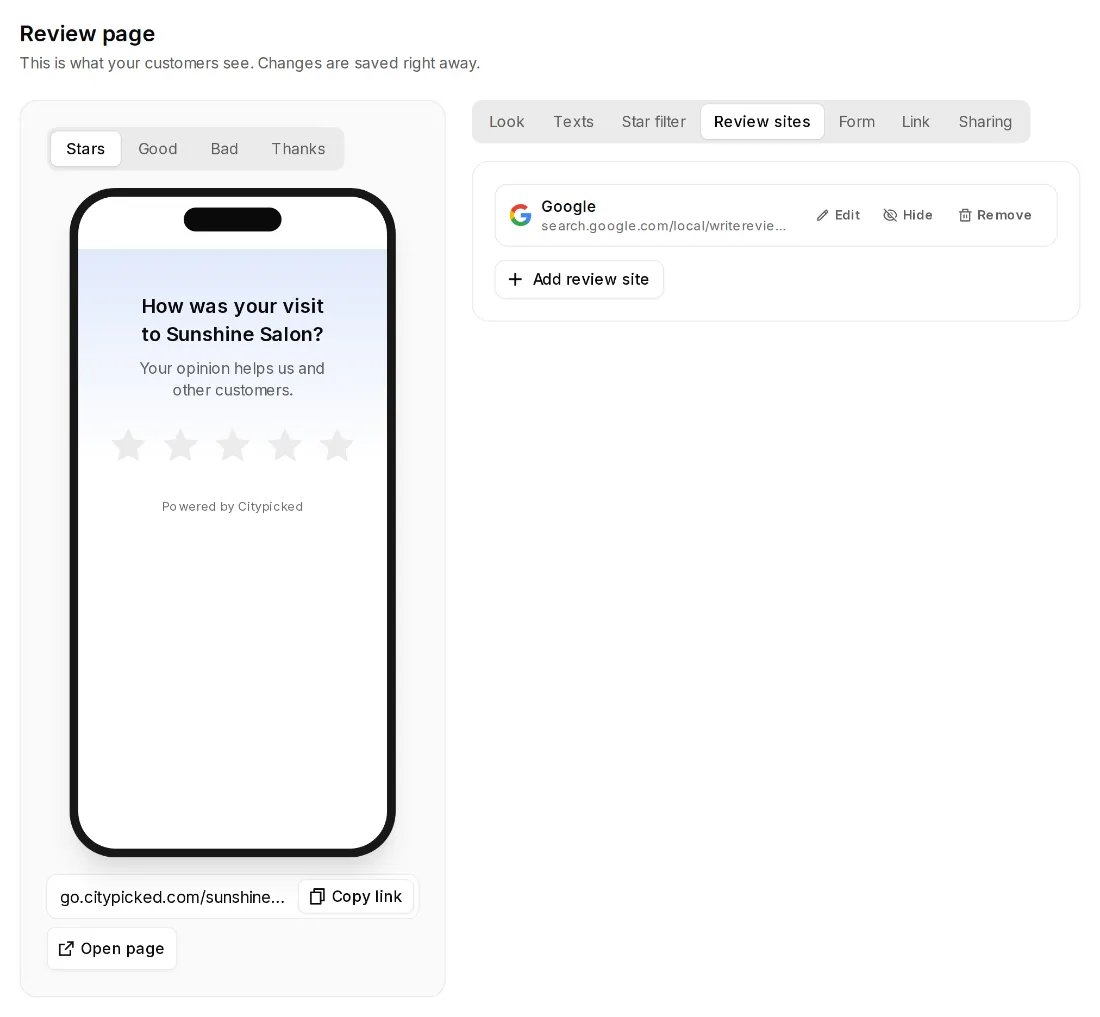
In Citypicked, open Review page, Review sites. Click “Edit” at Google, paste the new link and save.
- Step 4:
Test it: open your page, give 5 stars and tap Google.
Which links work
- The share link from Google Maps (maps.app.goo.gl/…), a full Google Maps link to your business, or the link from “Ask for reviews” in your Business Profile (g.page/r/…).
- When Citypicked can identify your business from it, customers land right in Google's review window. Otherwise your listing on Google opens, and your customers tap “Write a review” there.
- “This link leads nowhere. Please copy it again in Google Maps.” Then the link expired or is incomplete.
- “Please check” next to a review site: during the weekly check, the site couldn't find your page, or the address doesn't exist. Copy the link to your profile again.