Invite your team and choose roles
Everyone at the front desk should be able to send requests, but not everyone should touch your plan or review page. Invite your team and give each person the right role.
- Step 1:
Go to Settings, Team and click “Invite team member”.
- Step 2:
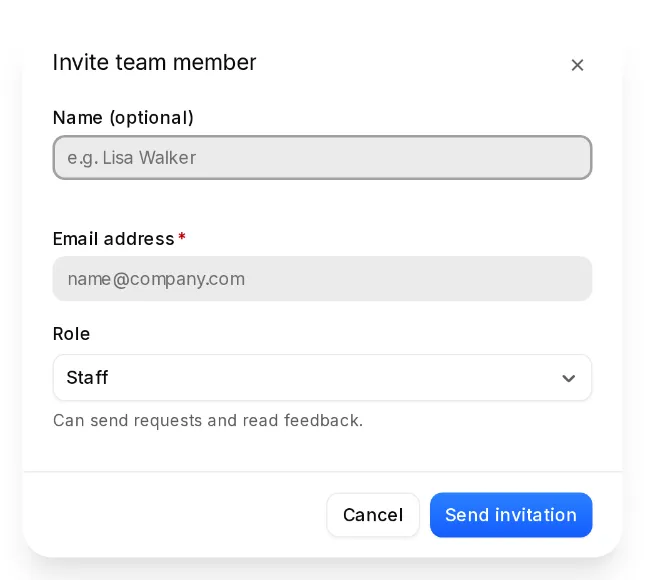
Enter the email address, the name if you like, and choose the role. With several locations, you also choose which ones they see.
- Step 3:
Click “Send invitation”. Your team member gets an email with a link, clicks “Accept invitation” and is in. Everyone logs in with their own email address.
The roles
- Owner: can do everything, including plan and team.
- Manager: can do everything except plan and team.
- Staff: can send requests and read feedback for their locations. They can't change the review page, the QR codes or the business settings.