Design your review page: logo, color, texts
Your customers should see right away that the page comes from you. With your logo, color and your own words it looks like part of your business.
- Step 1:
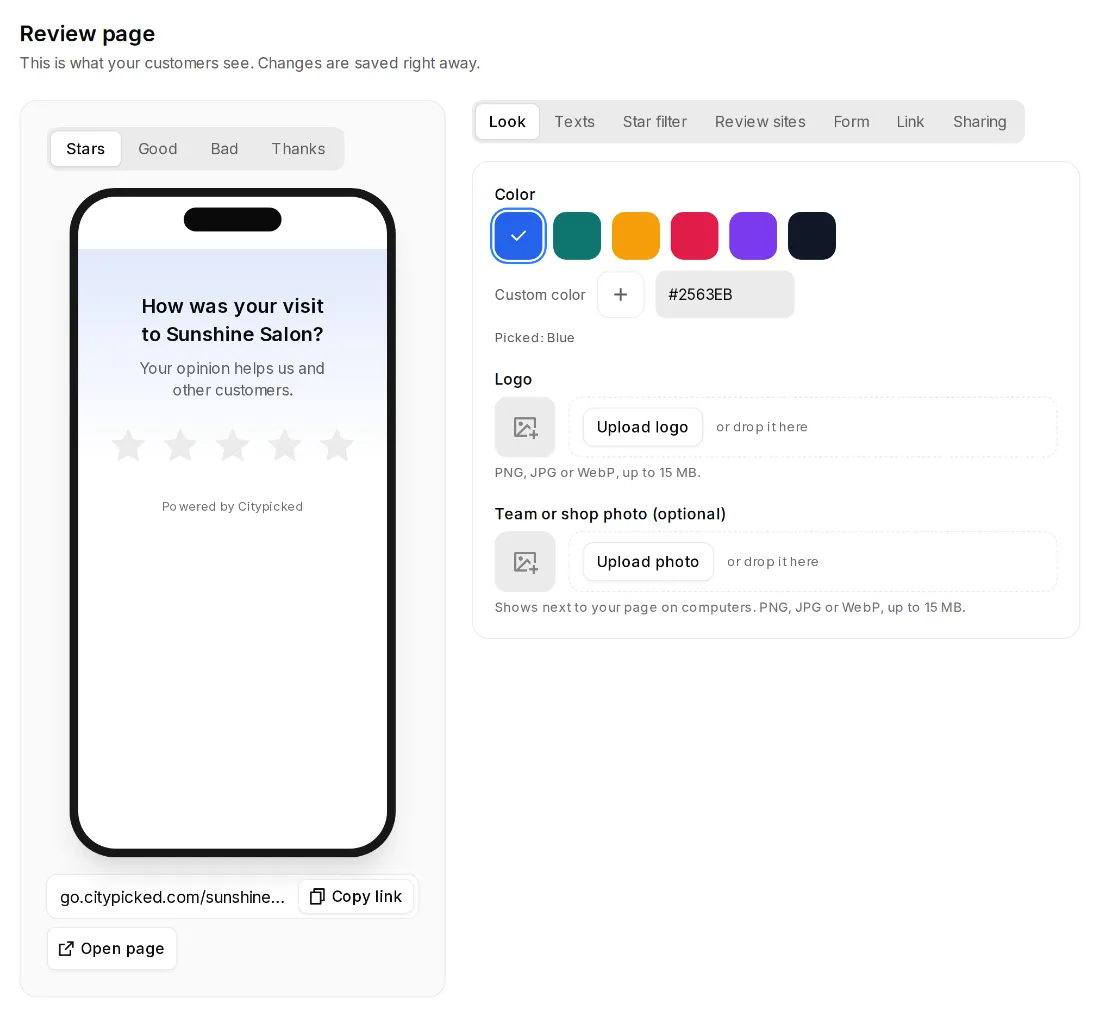
Click “Review page” on the left. You see the preview on the left and the sections on the right: Look, Texts, Star filter, Review sites, Form, Link and Sharing.
- Step 2:
Under “Look”, pick a color or enter your own under “Custom color”. Upload your logo and, if you like, a team or shop photo: PNG, JPG or WebP, up to 15 MB. The photo shows next to your page on computers.
- Step 3:
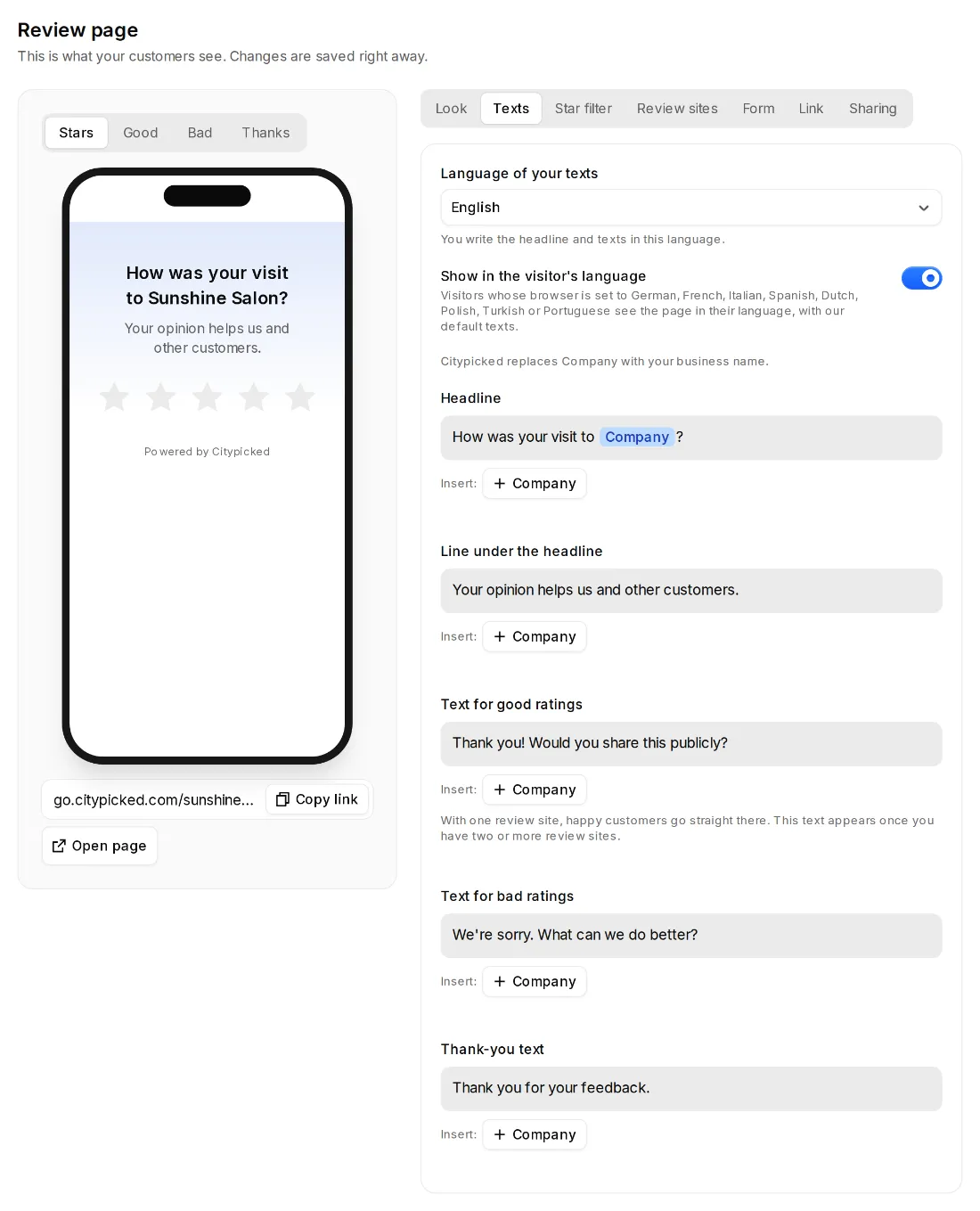
Under “Texts” you change the headline, the line under it, the texts for good and bad ratings and the thank-you text. Citypicked replaces Company with your business name.
- Step 4:
Above the preview you switch between Stars, Good, Bad and Thanks. That way you see every step your customers see. Everything saves right away.
Which language your customers see
Under Texts, “Language of your texts” is the language you write in. With “Show in the visitor's language” on, visitors whose browser is set to another language see the page in their language, with our default texts.